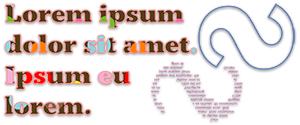

In this tutorial, we talk about the Text Tool in CorelDRAW. The Text tool is for writing paragraph text. It is for creating text intensive documents, such as a book, a magazine, a brochure, etc. When using a text tool, you can import text from word processor applications. Applications such as a Microsoft Word document, a Text document, Rich Text Format document, etc.
This tutorial shows you how you can set the default text properties for your document. Properties such as font style, font colour, font size, etc.
It shows you how to create a text frame. You will learn about the different techniques to import text into your CorelDRAW document. Text frames and layouts are discussed in great detail. The tutorial walks your through every detail about text frames. You will learn how to fit text to a frame. Linking frames is discussed in great depth. You link one text frame to the next to create continuation of the overflow of text from one frame to the next. You can even link multiple frames in one action. It will also walk you through creating page layouts for your magazine, or book, etc., before adding the text or image content. Text frames can have an outline. You can even add a background to your text frames. Text placed within a frame can be aligned according to different formats.
Finally, it shows you that text frames can be of any shape. A square, a rectangle, a star, a circle, etc. You can even add text to an object. When you do that, the text takes on the shape of the object. You can then break-apart the text from that object and separate the text from the object. The text will not lose its shape.
Hi! I just wish to give you a big thumbs up for your excellent info you have got here on this post. I will be returning to your blog for more soon.
Thank you kindly for your encouraging feedback. It means a lot.
Cheers!
Max Humayun